
A Customer List with the Same Company Three Times — Let Yurika Merge It
Starting with this issue, we begin anew as “AI Native Stories”.


Today's story
Starting with this issue, we begin anew as “AI Native Stories”.
The first story is the ‘messy list’ that almost everyone meets at least once before the year-end report. We have even prepared a prompt so you can follow along in five minutes.
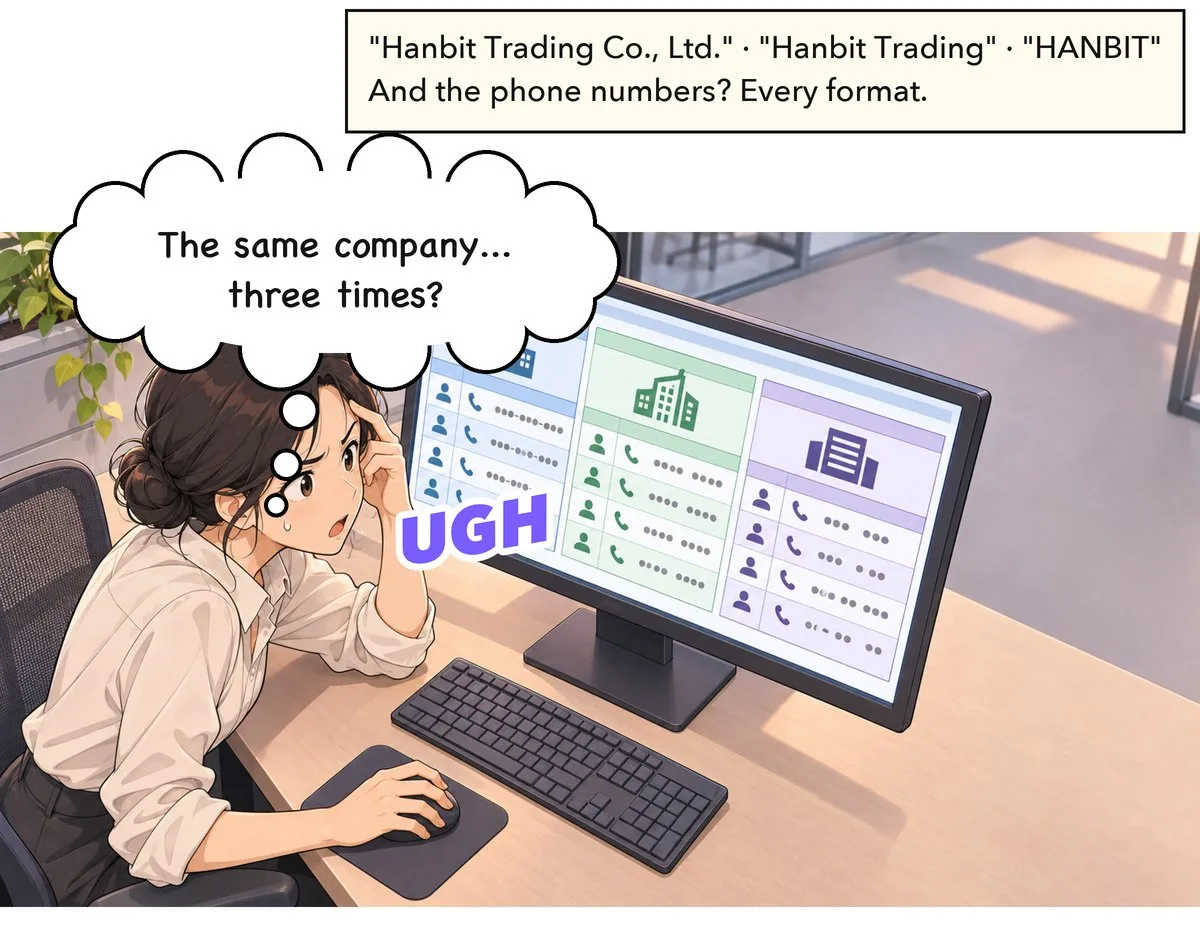
On a Friday afternoon, Assistant Manager Areu heard one line from the team leader: "Merge the sales, marketing and customer support lists into one and give it to me on Monday."
When Areu opened the three files, the same company appeared separately as ‘Hanbit Trading Co., Ltd.’, ‘Hanbit Trading’ and ‘HANBIT’, and the phone numbers were in different formats.
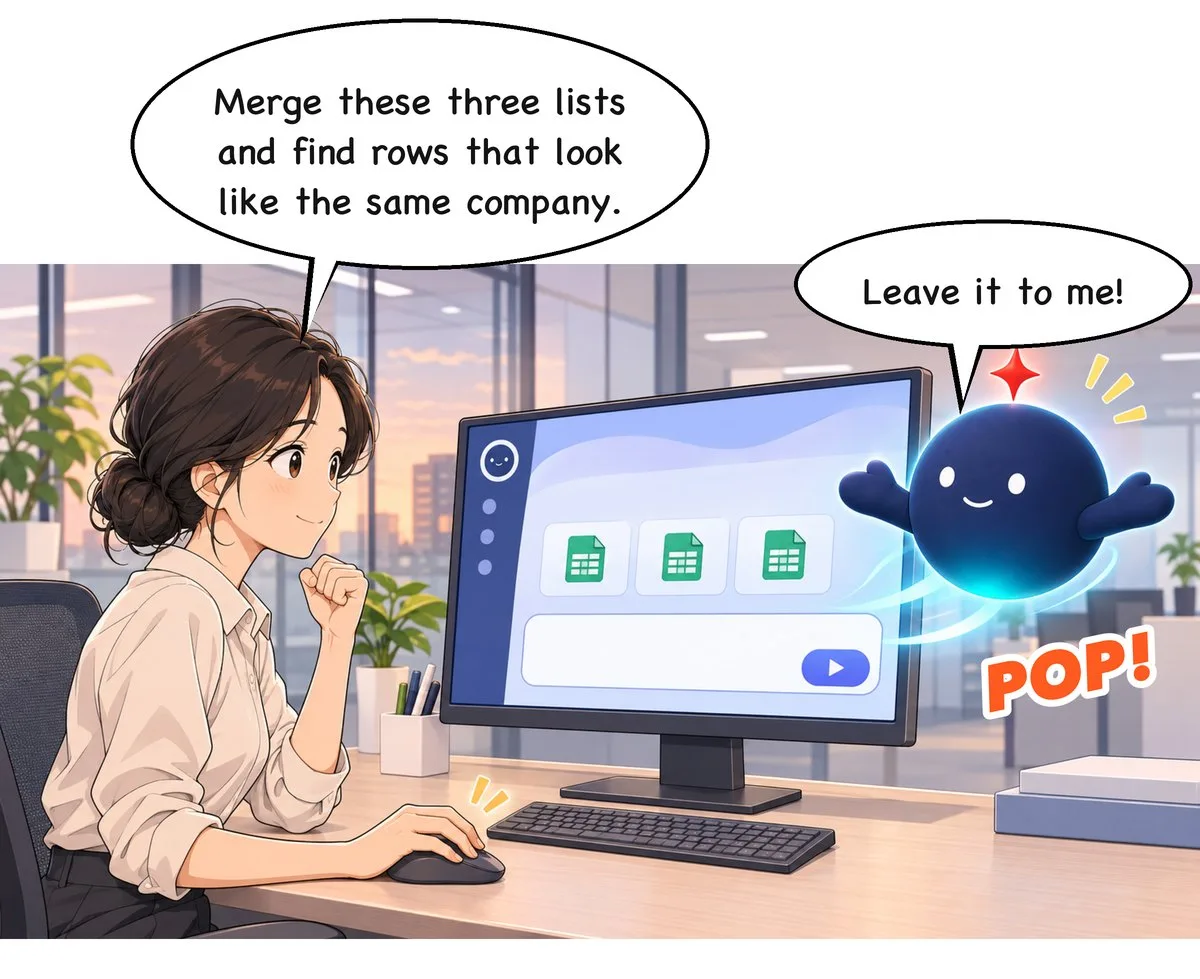
Areu opened a new conversation, attached the three files and handed it to Yurika: "Merge the three lists into one and find the rows that look like the same company."
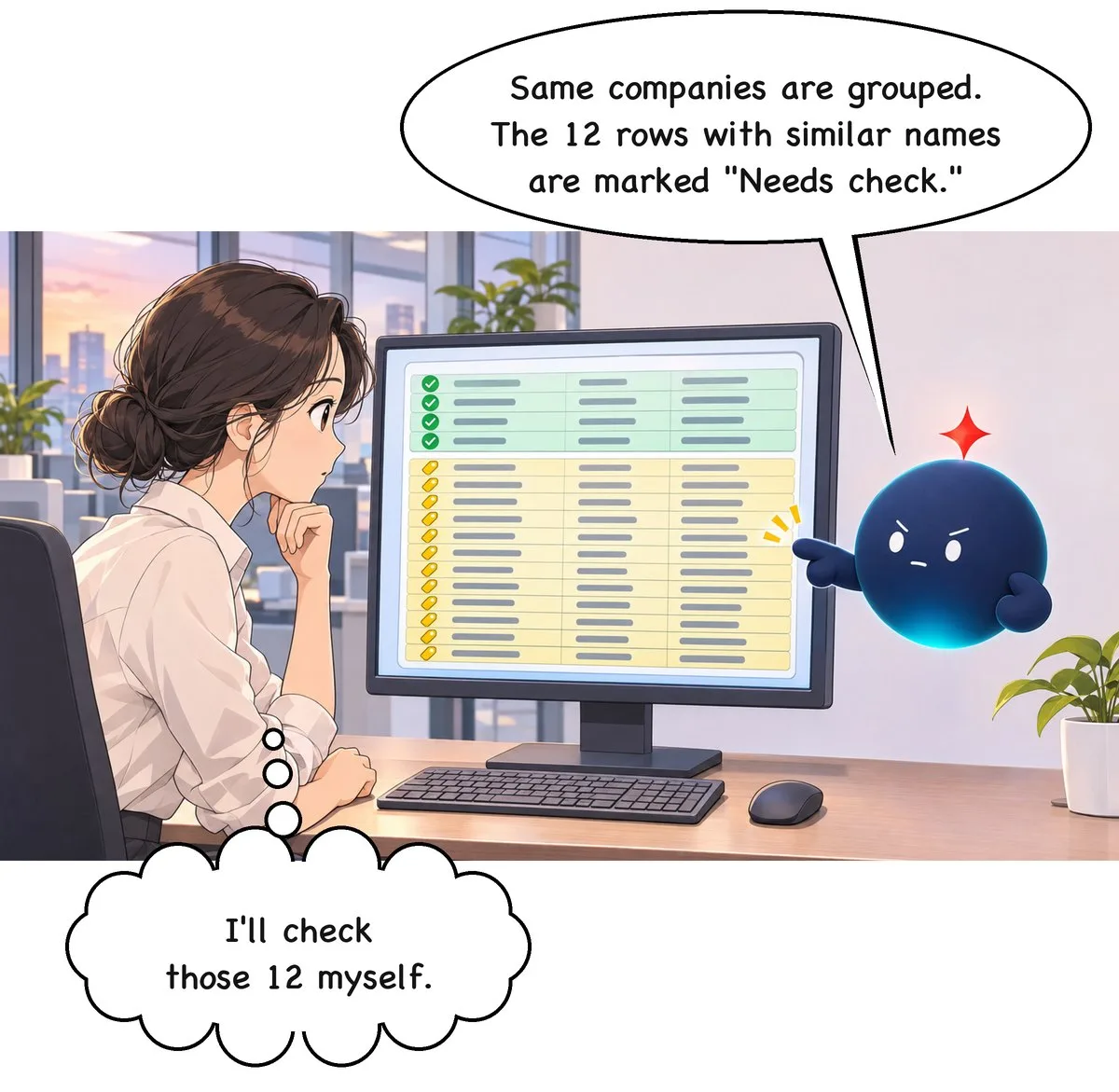
Yurika put company names and contacts in the same format, grouped the rows that looked like the same company and showed them in a table. Companies whose names were only similar were not merged; they were left as ‘needs review’.
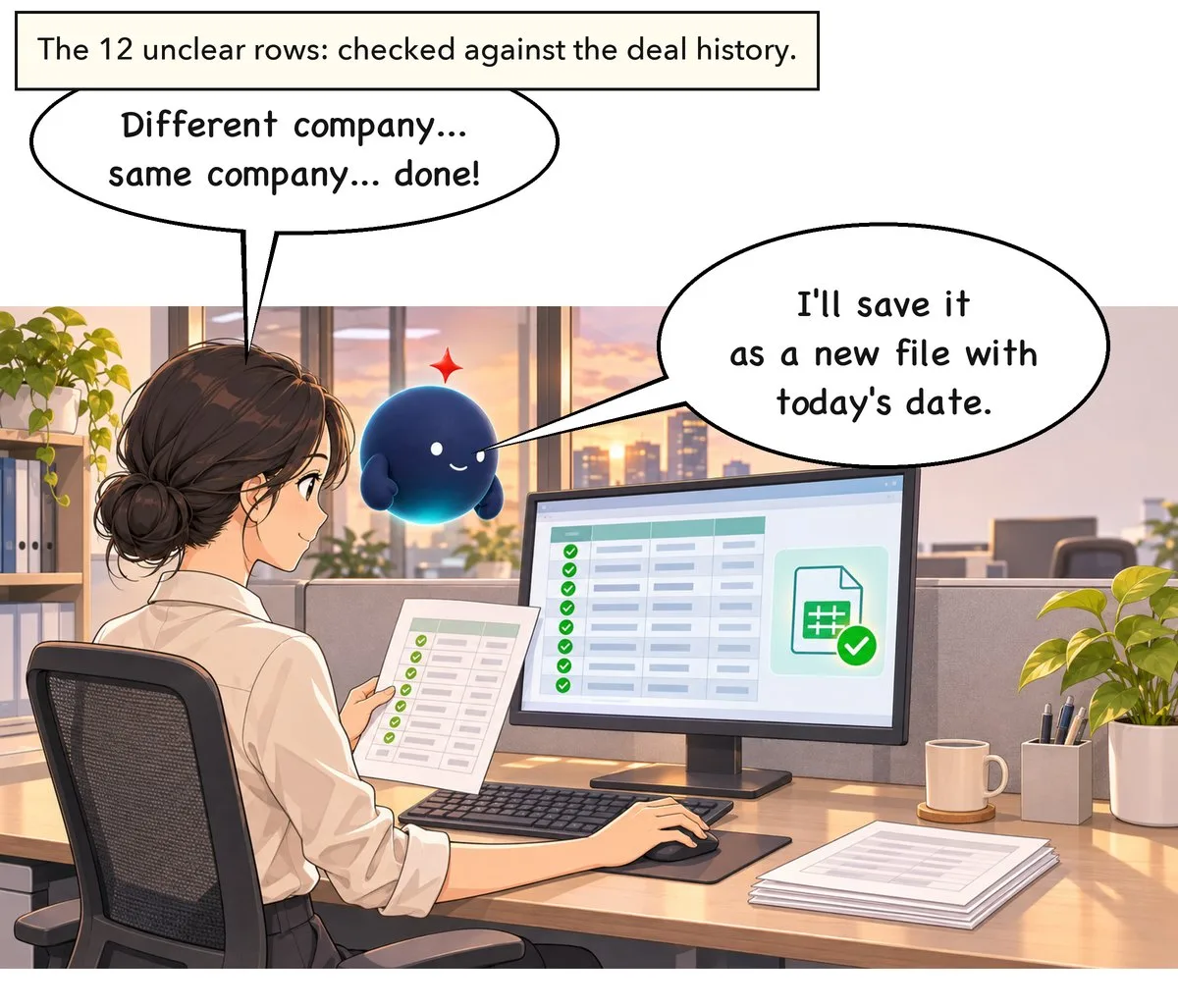
Areu checked those 12 rows against the transaction history and decided on them personally. The cleaned list came back as a new Excel file with the date added.
Yurika does the merging and matching.
People decide whether it is ‘the same company’.
Today's prompt
- ① Open a new conversation in Yurika and attach the list files you want to merge.
- ② Copy the text in the box below and paste it into the input field.
- ③ Replace the [ ] parts with your own files and criteria, run it, and you're done!
Merge the attached list files into one.
Files: [file names 1, 2, 3]
Criteria for treating rows as the same company: [company name, business registration number, domain, etc.]
1. Make company name, phone number and email formats consistent.
2. Group rows that look like the same company and show them in a table.
3. Do not merge rows you are not sure about; mark them ‘needs review’.
Do not guess, and create the result as a new Excel file. Leave the original files as they are, and put the date in the file name.
AI trends Yurika read
- 1
Excel first finds the ‘messy spots’ and shows proposed fixes
Microsoft, What's New in Excel (October 2026), 2026.10On October 27, 2026, Microsoft introduced the ‘clean data’ feature in Excel Copilot. It finds extra spaces, inconsistent text, number and date formats, duplicate values and values stored in the wrong format, explains why each is a problem and shows a proposed fix. The user chooses which fixes to apply.
Key takeawayExcel, too, lets AI find issues and propose fixes first, while a person chooses what to fix. If you decide up front ‘which rows count as the same company’ before merging, the result is easier to check with any tool.Read the source › - 2
Duplicate customer data: diagnose by asking, and check before merging
destinationCRM, DataGroomr Introduces AI Agent for Salesforce, 2026.10On October 20, 2026, DataGroomr released a conversational AI agent for Salesforce. Ask in plain words and it diagnoses the condition of the data and the duplicate rate, and can take on merging duplicate records and scheduling cleanup jobs. Merging proceeds only after the user confirms.
Key takeawayIf you attach the list files and hand it over in words, rows that look like the same company are grouped into a new Excel file, and the person who checks decides whether to merge.Read the source ›