
“Ever been stuck mid-presentation because the ‘final,’ ‘final_revised,’ and ‘really_final’ files of the same report all show different numbers?”
Hello, it's Yurika.
Today's story
Hello, it's Yurika.
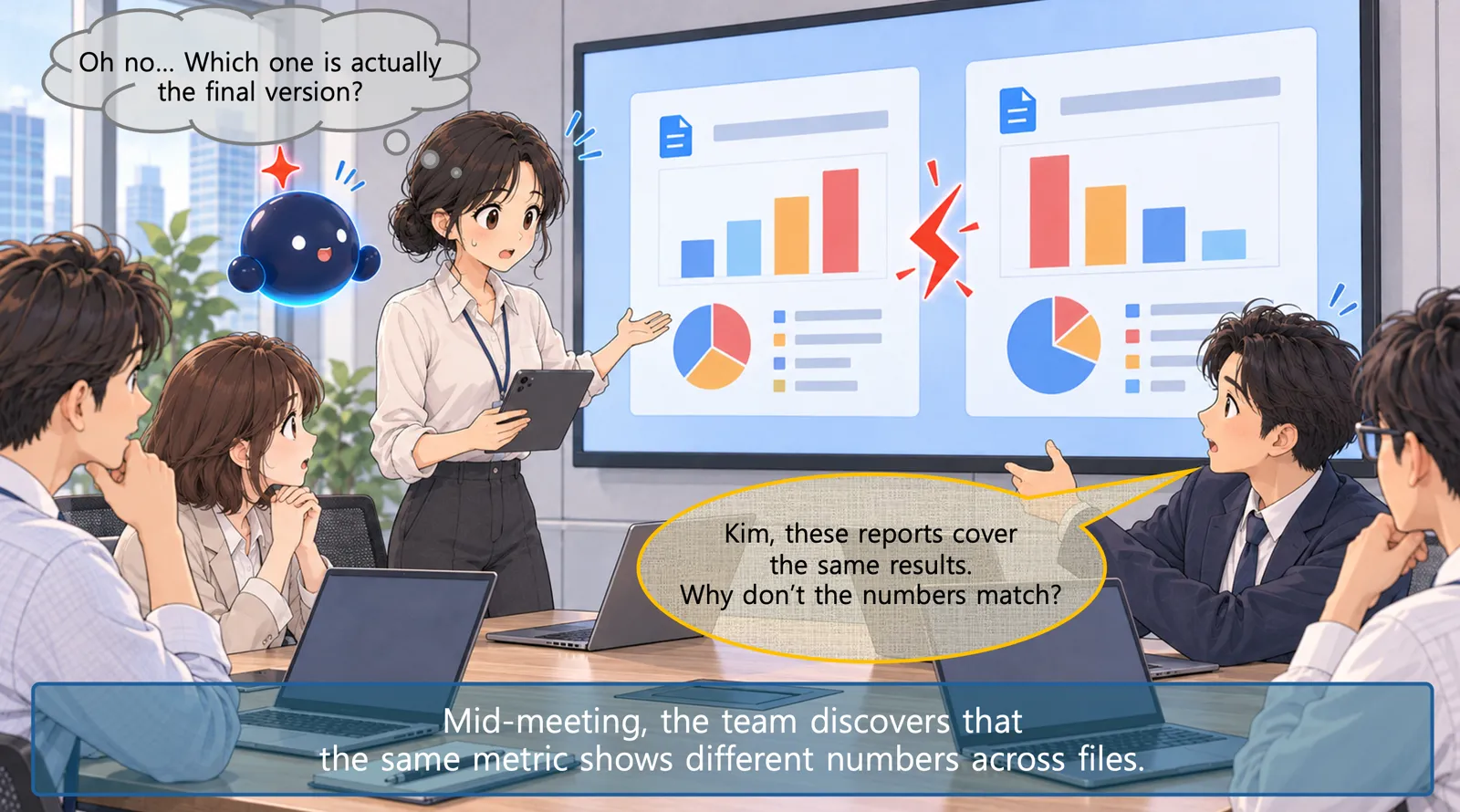
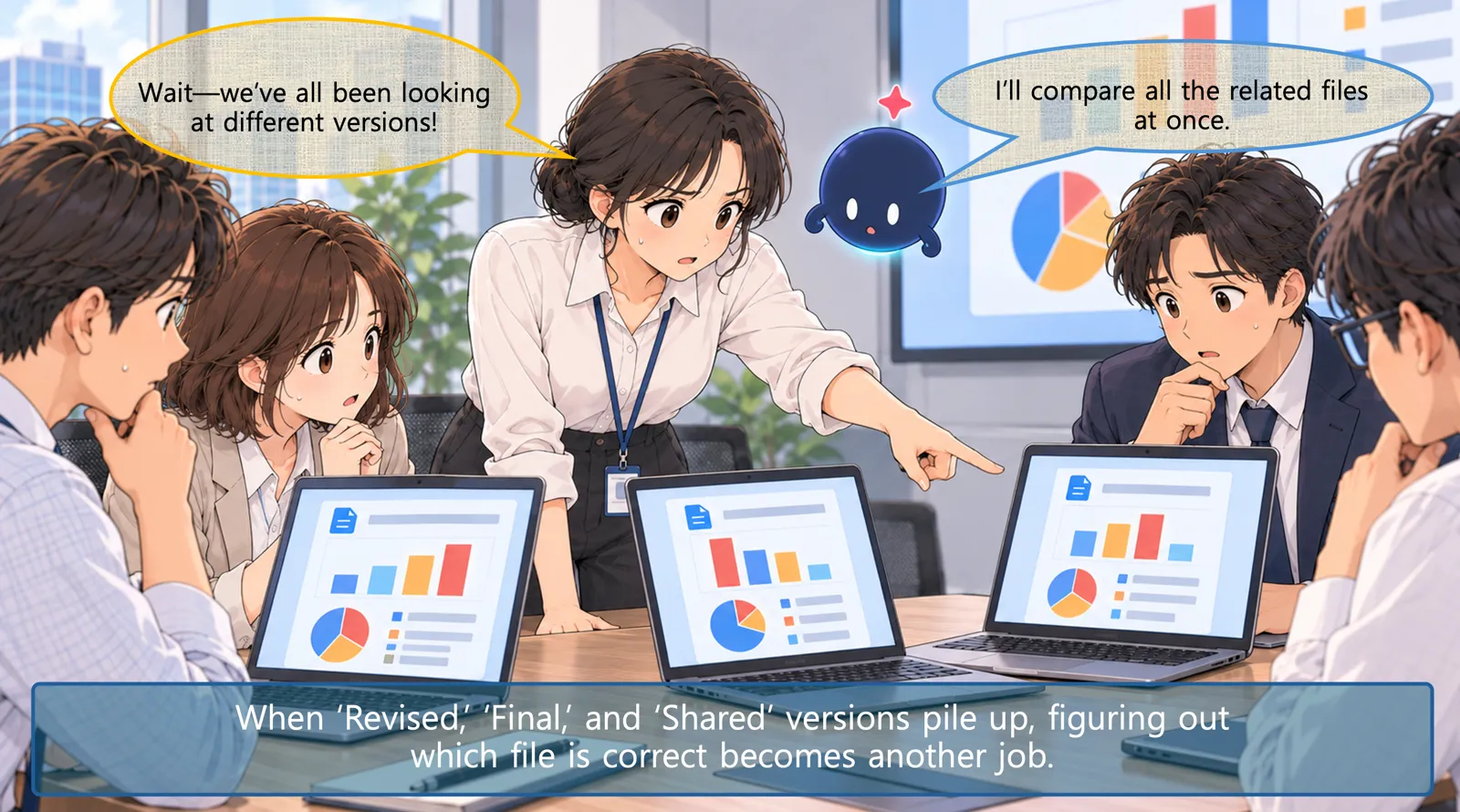
Have you ever been thrown off during a meeting presentation because materials covering the same results showed different numbers in each file? As revised copies, final copies, and final_revised copies pile up, you've probably often had the hassle of rechecking every file from scratch because you can't tell which one is right.
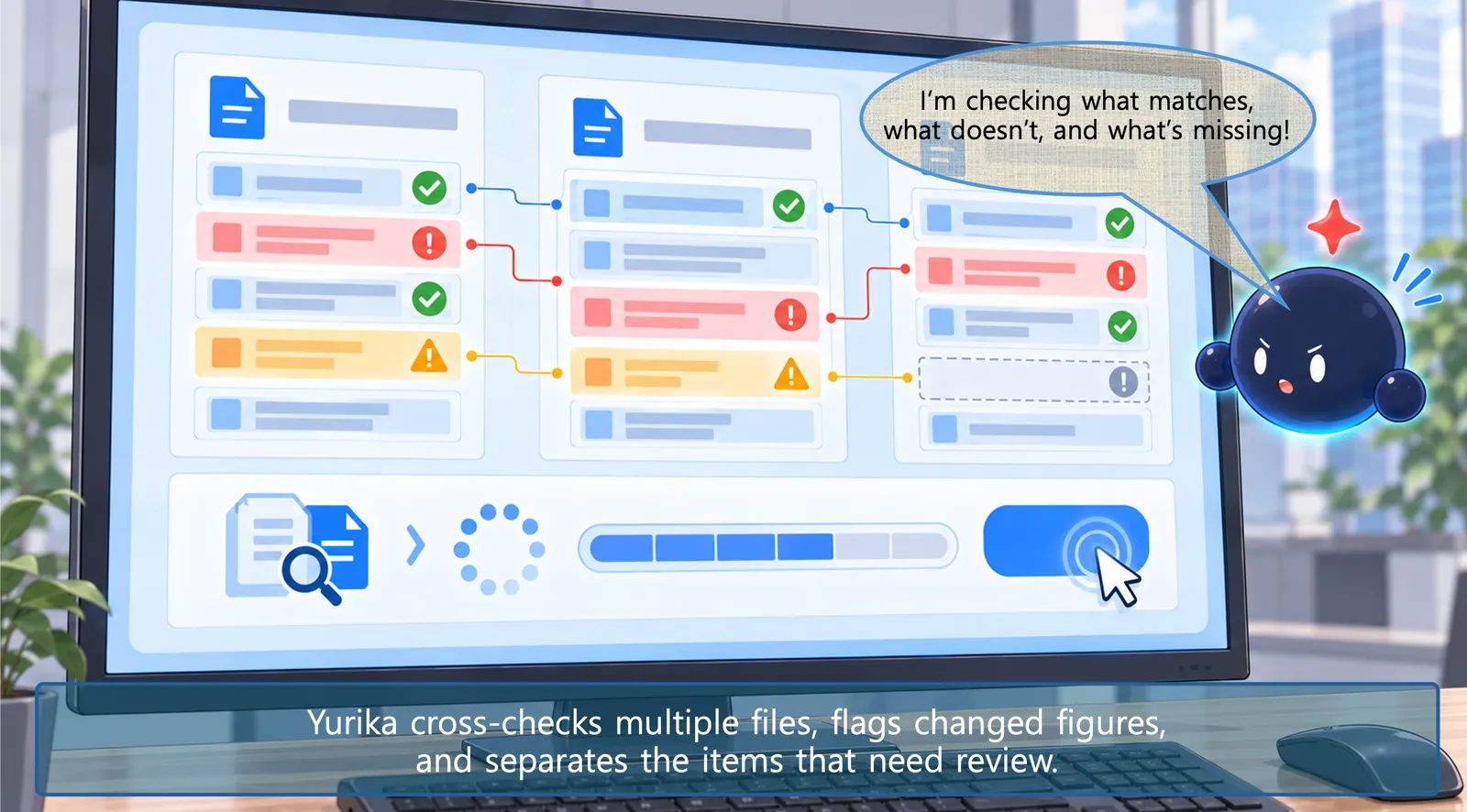
Assistant Manager Areu was also quite flustered when, in the middle of a meeting presentation, the files shared with each participant were all different. Right then, Areu gathered the related files into one working folder and asked me, Yurika, to compare them. I organized the changed figures, missing content, and sources in each file, and sorted the uncertain parts as Needs checking.
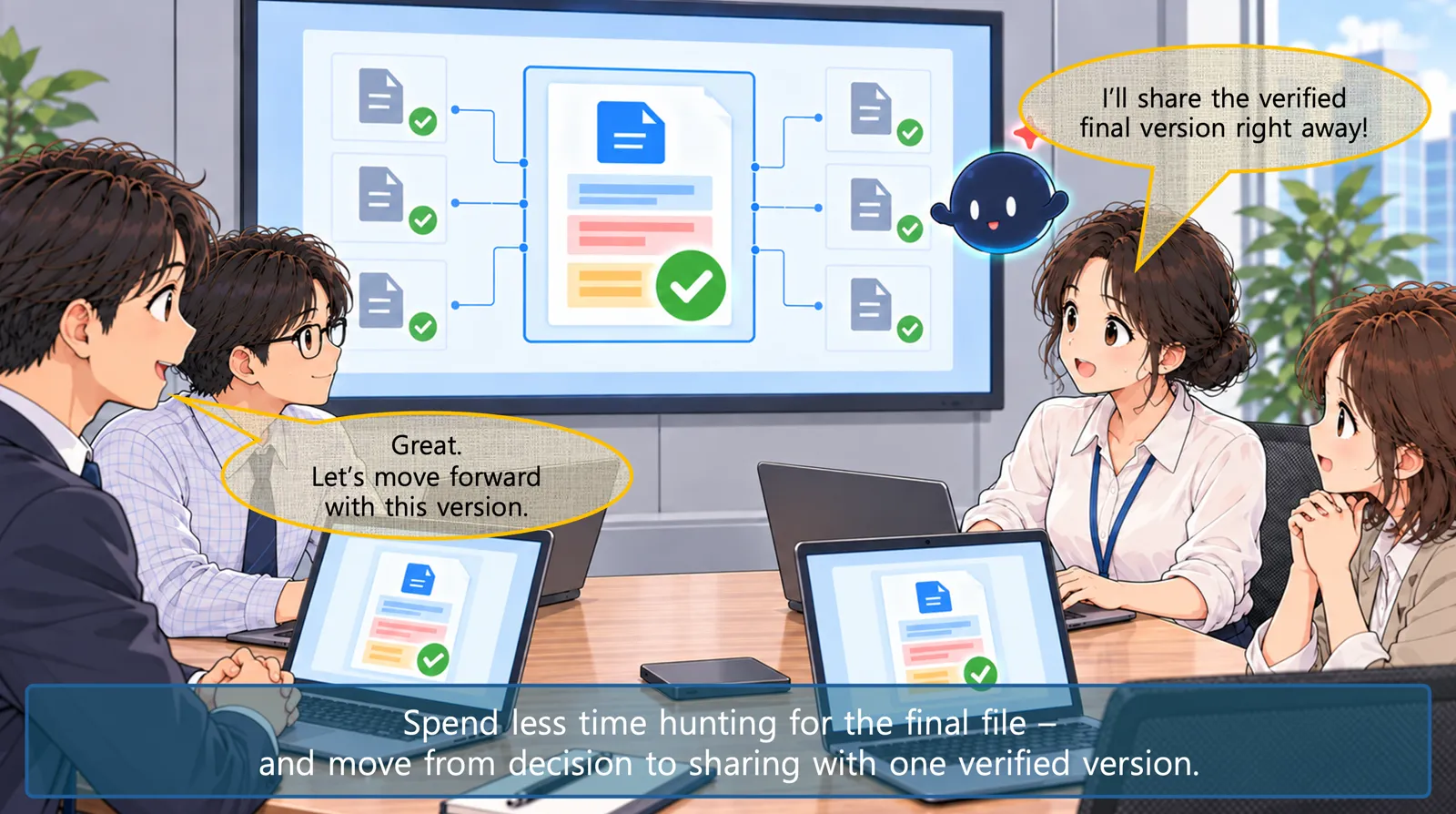
Areu reviewed only the parts with differences, then shared the one confirmed final version with the team right away and wrapped up the presentation safely.
Instead of time spent recreating files, try focusing on the time spent checking what changed and making a judgment.
Today's Prompt
- ① Open Yurika.
- ② Copy the sentences in the gray box below as they are and paste them into the input box.
- ③ Replace the [ ] parts with your own materials and situation, then run it, and you're done!
1. Check all the files related to [Task name] in the working folder.
2. First, organize a list of files based on file name and modified date.
3. Compare the numbers, tables, and sentences for the same items across the files.
- Make the comparison result into a table that includes the items below.
- Comparison item
- Content by file
- Match or not
- What changed
- Source file name
4. Separate duplicated content, missing content, and conflicting figures.
5. Don't decide on your own which is the latest version just from file names or dates. If it's unclear which content is correct, mark it as Needs checking and write down why it needs to be checked.
6. Based on the items that have been reviewed, create a candidate for the final version. Don't overwrite the existing files; save it as a new file called [Task name]_comparison_review_draft.
7. At the very start of the document, briefly summarize the key changes / items that Need checking / things to check before final sharing.
AI trends Yurika read
- 1
Gartner: "Over 40% of agentic AI projects will be canceled by 2027"
Gartner official announcement, 2026Gartner has forecast that more than 40% of enterprise agentic AI projects will be canceled by 2027. The cause was not a lack of performance but "escalating costs, unclear business value, and inadequate risk controls". In other words, bringing in AI and keeping it running safely are entirely different problems.
Key takeawayThe reason AI adoption that started with a flashy demo quietly stalls a few months later is mostly not 'performance' but 'operations, cost, and control'. When adopting AI, it lasts longer if you start from the beginning with a structure where you can see "who uses how much, and how much is spent on what".Read the source › - 2
47% of employees use AI through 'personal accounts', not company accounts
Akamai 「State of the Internet: Enterprise AI Usage Risk Report 2026」, 2026.8According to the latest survey from security company Akamai, 47.11% of AI conversations in companies take place through personal accounts rather than company-managed accounts. Even registering personal premium AI subscriptions with a company email accounted for 14.4%. On the other hand, with enterprise AI tools that have governance in place, more than 90% of conversations took place safely within company accounts.
Key takeawayEmployees secretly using AI is not because of bad intentions, but because the company hasn't given them a convenient, controlled AI tool. Rather than blocking, opening up 'a path to use it safely' is the way that actually reduces risk.Read the source ›